How to Test Local MCP Servers: localhost & stdio Inspector + AI Agents
Nikhil Tiwari
MCP Playground
📖 TL;DR
- To test a local MCP server, run a client on the same machine. A stdio server is a command, not a URL, so browser-based testers cannot start it.
- Inspect first: connect over stdio, list tools, resources and prompts, call each tool by hand and read the raw JSON-RPC log.
- Then test with AI agents: give a real model a real task and watch which tools it picks, what arguments it sends and whether it stops.
- Then compare models: the same prompt on Claude, GPT, Gemini, Grok, DeepSeek and Qwen. A description that confuses one model is still a bug.
- MCP Playground Desktop does all three on Mac and Windows: stdio inspector, localhost servers and Agent Studio with 80+ models.
Table of Contents
- What counts as a local MCP server?
- Why browser MCP testers cannot reach local servers
- Ways to test a local MCP server, compared
- Step 1: Inspect a stdio MCP server
- Testing a localhost HTTP or SSE MCP server
- Step 2: Test your local MCP server with AI agents
- Step 3: Test with multiple AI models
- What to fix when a model gets it wrong
- Common local MCP errors and fixes
- Local MCP server testing checklist
- FAQ
What Counts as a Local MCP Server?
A local MCP server is one that runs on your own machine instead of at a public URL. It comes in two shapes.
- stdio servers. The client starts your server as a child process, with a command like
npx tsx server.tsoruv run server.py, and exchanges JSON-RPC over its stdin and stdout. This is how Claude Desktop, Cursor, VS Code, Windsurf and Claude Code launch most servers. - localhost HTTP servers. Your server listens on something like
http://localhost:3000/mcp(Streamable HTTP) or/sse(legacy SSE). It has a URL, but only your machine can reach it.
Almost every MCP server starts life as one of these. You build it locally, test it locally, and only deploy once it works.
Why Browser MCP Testers Cannot Reach Local Servers
A web page cannot start a process on your computer, and browsers block HTTPS pages from calling localhost. That rules out every browser-based MCP tester for local work, including our own MCP Inspector Online.
Browser tools are great once your server has a public URL. Before that, you need a client on the same machine as the server.
Ways to Test a Local MCP Server, Compared
| Option | stdio | localhost | AI model in the loop | Remembers servers |
|---|---|---|---|---|
| Official MCP Inspector (npx) | Yes | Yes | No | No, relaunch each time |
| Inspector CLI mode | Yes | Yes | No | Scripted, good for CI |
| Your real client (Claude Desktop, Cursor) | Yes | Yes | One model, few details | Yes, but restart to reload |
| Browser testers | No | No | Some | Public URLs only |
| MCP Playground Desktop | Yes | Yes | 80+ models, every call shown | Yes, plus imports from your clients |
Use the official Inspector for quick protocol checks and CI. Use a desktop client with models built in when you want to know whether an AI agent can actually use your server.
Step 1: Inspect a stdio MCP Server
Inspecting means proving the server speaks MCP correctly: the handshake works, every tool is listed with a sensible schema, and every tool returns what you expect.
With MCP Playground Desktop
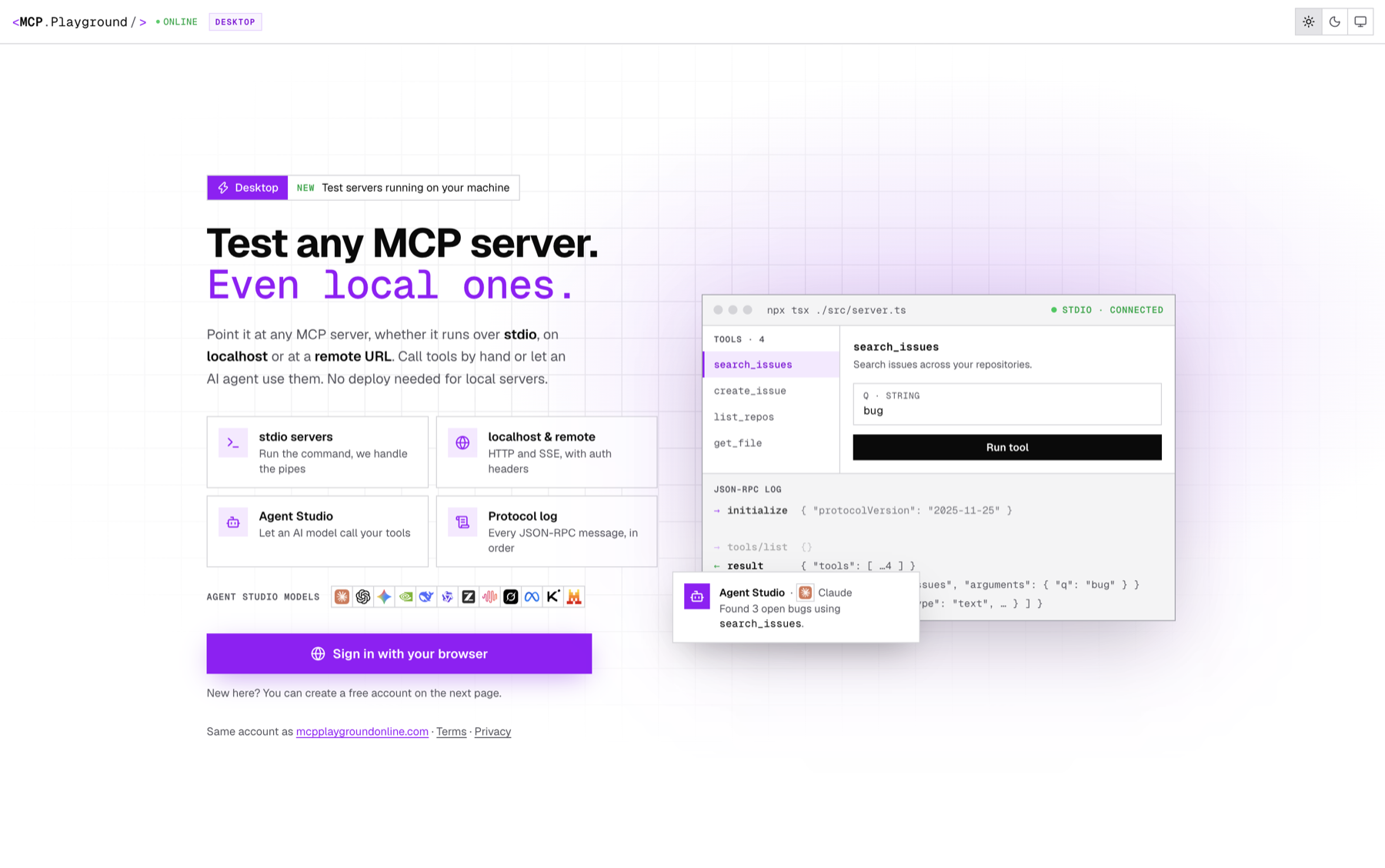
- Install the app from the download page (macOS 13+ on Apple Silicon or Intel, Windows 10 and 11).
- Add a stdio server. Enter the command you would run in a terminal, the working directory, and any environment variables such as API keys.
- Or import it. If the server is already set up in Claude Desktop, Cursor, VS Code, Windsurf or Claude Code, the app reads those MCP config files.
- Connect. The app starts the process, runs the
initializehandshake and lists every tool, resource and prompt. Your server's stderr appears in the log. - Call each tool by hand. Fill in the form generated from the tool's input schema and run it. The result and the exact JSON-RPC request and response appear in order.
With the official MCP Inspector
The official Inspector takes your server command after a -- separator and starts it as a child process:
npx @modelcontextprotocol/inspector -e API_KEY=test -- node build/index.jsIt opens a web UI on localhost:6274 with a local proxy on port 6277. Keep it updated: versions before 0.14.1 were affected by CVE-2025-49596, a critical remote code execution flaw.
What to check while inspecting
- Every tool you registered appears. A missing tool usually means a registration or import problem.
- Input schemas have types and descriptions for every field.
- Each tool works with valid input and returns a clear error with invalid input, not a stack trace.
- Nothing except JSON-RPC is written to stdout.
Testing a localhost HTTP or SSE MCP Server
For a server on localhost, connect to its full URL, including the path. Streamable HTTP servers usually serve /mcp; older SSE servers serve /sse.
In MCP Playground Desktop, choose HTTP, paste http://localhost:3000/mcp, add any headers your server expects, and connect. The same tool list, call forms and protocol log apply. Once you deploy, the same server can be tested in the browser with the free MCP test server tool.
Step 2: Test Your Local MCP Server with AI Agents
Calling tools by hand proves the server works. Only a real model proves it is usable. A model sees nothing but your tool names, descriptions and schemas, and has to choose from them.
Open Agent Studio in the desktop app, pick a model, and give it a task a real user would give:
Find my note about the login bug, then add a follow-up note saying it is fixed in 0.1.1.
Every call runs against your local server, and you see each one: the tool picked, the arguments sent and the exact result.
What to look for
- Tool selection. Does it pick the right tool first time? Tools described as "Search", "Add" and "Delete" make models guess.
- Argument quality. A field called
qwith no description invites empty strings, whole sentences and invented fields. - Result understanding. "ok 3" tells a model almost nothing. It may call the tool again to check.
- Stopping. A model looping on the same tool usually means the result never says the job is done.
- Safety. Tools marked
destructiveHint: truewait for your approval in Agent Studio, so a confused model cannot wipe your test data.
You can also connect several servers at once, such as your local server next to a remote one, and check that the agent picks the right tool from the right server. For a deeper look at why this matters, see why testing MCP servers with real AI models matters.
Step 3: Test with Multiple AI Models
Your users will connect your server to whatever client and model they already use. Testing with one model only tells you how that one model behaves.
Run the same prompt on a spread of model families. MCP Playground Desktop includes 80+ models, among them Claude, GPT, Gemini, Grok, DeepSeek, Qwen, Kimi and GLM, and you switch between them without changing your server.
| What differs between models | What it reveals about your server |
|---|---|
| Picks a different tool for the same task | Two tool descriptions overlap |
| Sends arguments in a different format | The schema needs examples, enums or formats |
| Calls tools in parallel or one at a time | Whether your tools are safe to run concurrently |
| Stops and asks before acting | Which tools look risky, and whether that is right |
| Smaller models fail where frontier models pass | Descriptions rely on the model guessing intent |
A practical spread: one frontier model, one fast cheap model, and one open-weight model. If all three succeed, most of your users will too. Model-specific guides: GPT, Gemini, DeepSeek and Qwen.
What to Fix When a Model Gets It Wrong
The fix is usually the description, not the code. Before:
server.registerTool('search',
  { description: 'Search', inputSchema: { q: z.string() } }, handler);
After:
server.registerTool('search_notes', {
  description:
    "Search the user's saved notes by keyword. Returns up to 10 " +
    'matching notes as {id, title, body}. Search before adding a ' +
    'note, to avoid duplicates.',
  inputSchema: {
    query: z.string().describe('One or two keywords, e.g. "login"'),
  },
  annotations: { readOnlyHint: true },
}, handler);
Reconnect and ask the same question on the same models. The difference usually shows on the first run: one targeted search, one sensible new note, a clear answer. More patterns in how to test your tool descriptions.
Common Local MCP Errors and Fixes
| Error | Cause | Fix |
|---|---|---|
spawn npx ENOENT |
Apps opened from the Dock or Start menu get a shorter PATH, so Node from nvm, fnm, Volta or Homebrew is missing | MCP Playground Desktop loads your login shell's PATH; elsewhere use the full path from which npx |
| Parse error right after connecting | Something printed to stdout, which is reserved for JSON-RPC on stdio | Log with console.error or print(..., file=sys.stderr) |
| Server exits immediately | Missing environment variable or wrong working directory | Set both on the connection and read the server's stderr |
| Connection refused on localhost | Server not running, or a different port or path | Check the full URL, including /mcp or /sse |
Running watch mode? It can print to stdout and break a stdio connection. Restart the server from the client instead. For more, see the stdio security guide.
Local MCP Server Testing Checklist
- Connect over stdio (or localhost) and confirm the handshake.
- Every tool, resource and prompt is listed, with descriptions on every field.
- Each tool works with valid input and fails clearly with invalid input.
- Nothing but JSON-RPC on stdout.
- An AI agent completes a real task with no wrong tools or loops.
- The same task passes on at least three model families.
- Destructive tools are annotated and wait for approval.
Frequently Asked Questions
How do I test a local MCP server? Run a client on the same machine. Connect over stdio with the command that starts your server, or to its localhost URL, then list its tools, call each one and read the JSON-RPC log. Finish by giving an AI model a real task.
Can MCP Inspector test stdio servers? Yes. The official MCP Inspector starts your server command as a child process and connects over stdio. It has no AI model built in, and you relaunch it with npx each time.
Is there an MCP Inspector alternative with AI models? Yes. MCP Playground Desktop inspects stdio and localhost servers like the Inspector, remembers your servers, and adds Agent Studio, where 80+ models call your local tools.
Can I test a stdio MCP server in the browser? No. A web page cannot start a process on your computer, and browsers block HTTPS pages from calling localhost. Use a desktop client until the server has a public URL.
How do I test an MCP server with multiple AI models? Connect the server once, then run the same prompt on several models, such as Claude, GPT, Gemini and an open-weight model. Compare which tools each picks and what arguments each sends.
Why does my MCP server work in the Inspector but fail in Claude Desktop? Usually PATH or environment differences. Desktop apps get a shorter PATH than your terminal, so npx or uv may be missing. Use full paths and set environment variables in the config.
Is MCP Playground Desktop free? A free account gets a 7-day trial of the whole app. After that it is included with paid plans. Agent Studio messages use credits from your account.
Conclusion
Local MCP server testing comes down to a short loop. Inspect the server over stdio, hand it to an AI agent, compare a few models, fix the descriptions, and reconnect.
No deploy, no tunnel, and no restarting Claude Desktop between changes. Get MCP Playground Desktop for Mac or Windows →
🧪 Testing a deployed server instead?
Public MCP URLs can be tested free in the browser with MCP Inspector Online and MCP Agent Studio. New to MCP? Start with what is Model Context Protocol.
Sources: MCP Inspector docs, modelcontextprotocol/inspector on GitHub, MCP specification, CVE-2025-49596.
Written by Nikhil Tiwari
15+ years in product development. AI enthusiast building developer tools that make complex technologies accessible to everyone.
Free MCP Tools (no install)
Build, compare & ship MCP agents
Connect any MCP server, run evals on it, compare 60+ models side-by-side, deploy hosted servers, and save reusable agents you can export as an API — all in your browser.